How do I change my password?
You can change your GetWell Loop account password at any time with the following steps:
- Go to the GetWell Loop login page: https://loop.getwellnetwork.com/
- Sign into your GetWell Loop account with your registered username and current password.
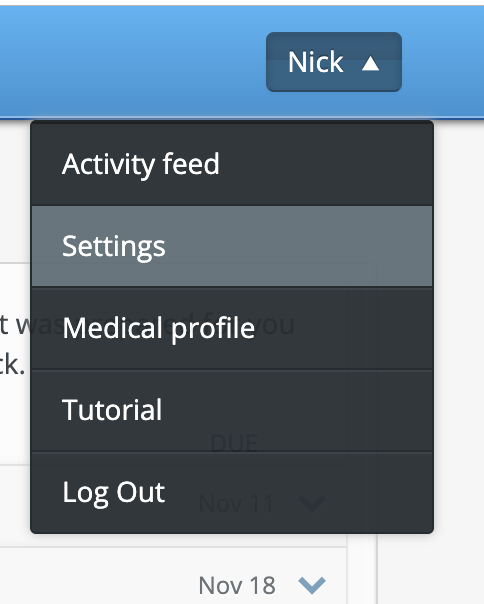
- Click on your name on the top right of the screen, and select "Settings" in the drop down menu.
- Under the "Login" section, enter your current password in the top field to proceed to setting a new password.

- Enter your new password to meet the following password requirements:
- A minimum of 8 characters
- At least 1 uppercase letter
- At least 1 lowercase letter
- At least 1 number character
- Cannot be any of the 5 most recent passwords you've used before
- After meeting the password requirements and typing 2 matching passwords correctly, you will see green checkmarks next to your new password. Click the "Save" button to save your new password.

- Be sure to use your new password the next time you log into GetWell Loop!
- If you are letting your password auto-fill, you will need to update your auto-fill settings each time you change your password.